
Orbitus Robotics
Animate a 3D model in Musimotion
The three 3D Models templates pair a real ROB model with editable titles, animation keys and an original electronic soundtrack. The Mac and iPad editions shown here are development previews. Vision Pro 1.0.0 build 12 is awaiting App Review and is set for automatic release after approval.
Start with a robot
Open New Presentation → 3D Models. Select ROB Feature Tour and choose Create Presentation. The 15-second scene introduces ROB’s paired optics, chest speakers and tracked drive. Press Play to hear Survey Pulse and see each callout appear. In an existing presentation, choose Templates → Import into Presentation to add the tour as a new scene.
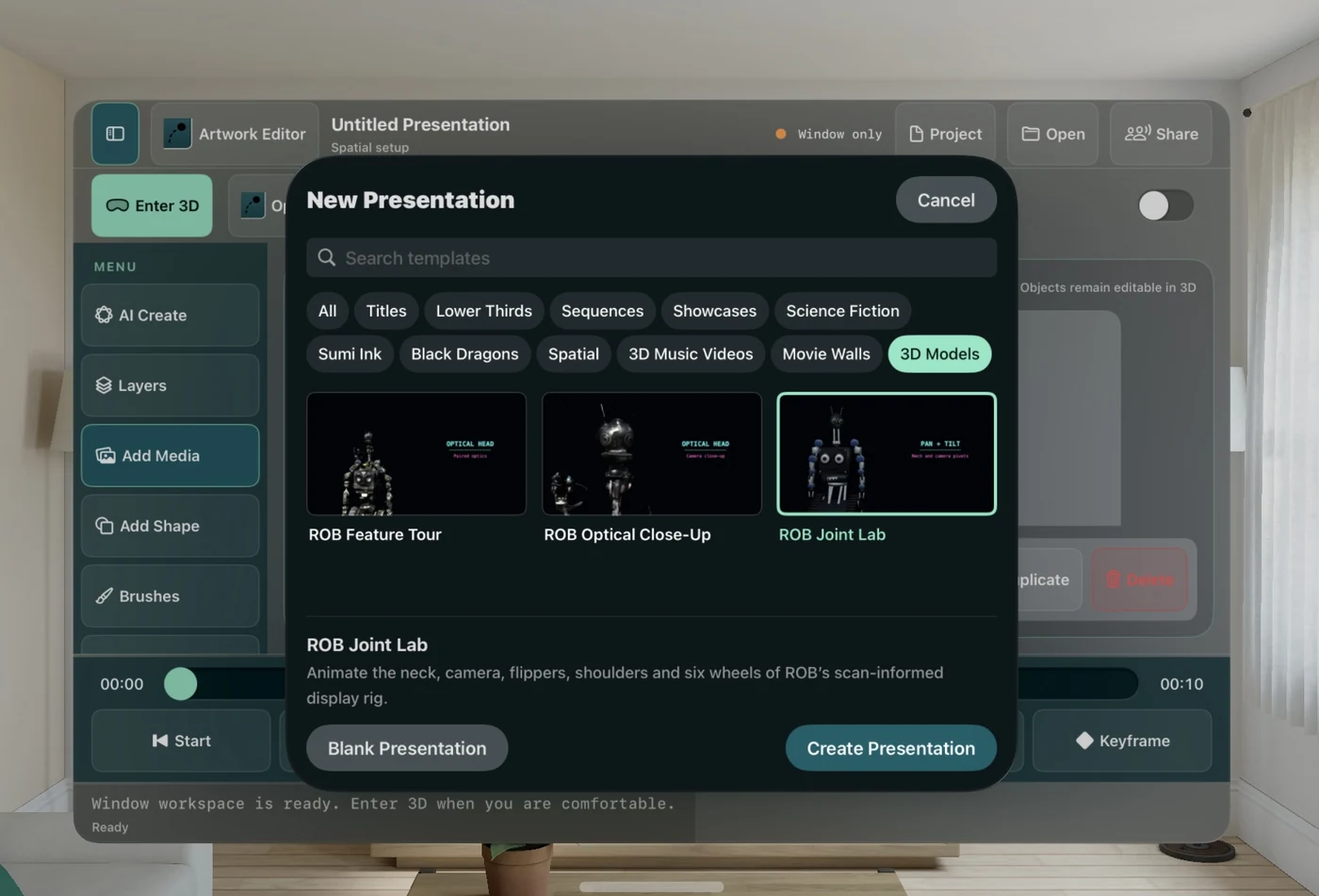
In the Vision Pro gallery, select the model template before choosing Create Presentation.
To study a single detail, create ROB Optical Close-Up. Scrub from the wide view at one second to the head at 3.4 seconds. The focus holds while the model turns, then the framing returns to the full chassis by nine seconds. The cyan and magenta titles and the Optical Drift audio track can each be edited separately.
Open Objects, select a text layer such as Optical head, and change its words or color. Neon glow follows the text color. Keep each callout’s timing or change its layer start and end to match a different part of the tour.
Watch ROB Feature Tour
The full 15-second tour follows the scan’s head, speakers and tracks with its original score, Survey Pulse. Open the movie.
Import your own model
On Mac choose File → Import 3D Model…. On iPad open Photos & Movies → 3D Model. On Vision Pro open Add Media → Import 3D Model.
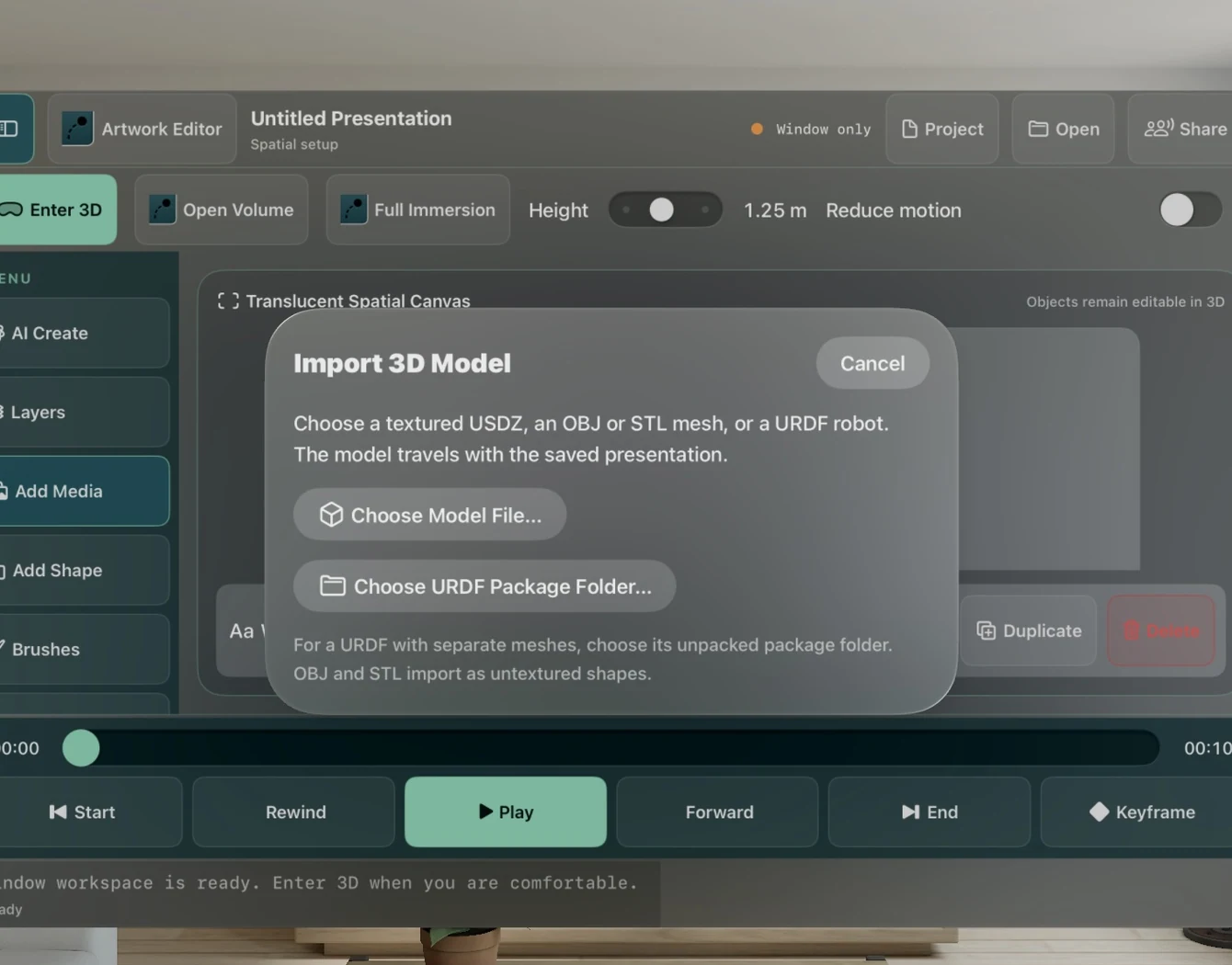
Use the file picker for a single model or select the package folder to include sibling meshes.
Select Choose Model File… for a textured USDZ, an untextured OBJ or STL, or a URDF made entirely from shapes. The imported model appears as a selectable object in a 3D volume. USDZ preserves its embedded materials and textures. For a robot, URDF defines the links, parent-child pivots and axes.
For the sample rig, download ROB Joint Lab. Unpack the ZIP, choose Choose URDF Package Folder… and select the unpacked ROB-Joint-Lab folder. It contains ROBJointLab.urdf alongside its meshes folder.
If a selected URDF reports a missing mesh, choose Locate Mesh Package Folder… and select the folder containing that same URDF and its meshes. The folder can be a complete copy stored elsewhere. After a successful import, the editor opens 3D Volume and lists the robot as a new object. To start with a complete package, open Import 3D Model and choose Choose URDF Package Folder…. Keep the filenames and subfolders used in the URDF. For a package with several URDFs, choose the intended file first and select its own package folder.
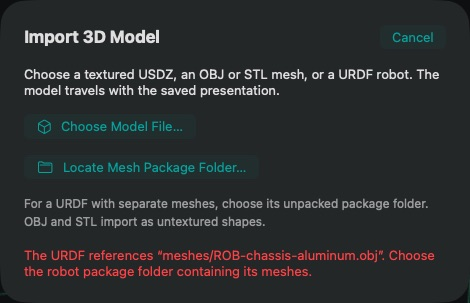
This Mac test copy intentionally omitted the mesh folder. The error names the missing chassis mesh so you can find the complete package.
Save the presentation and reopen it. Imported model data travels inside the project, so another matching development build can open it offline.
Move the whole model through a volume
- Select your imported model under Objects and choose Edit XYZ. Set the time to zero, X and Y to 0.50, and Z to −0.30. Choose Save XYZ Keyframe.
- At four seconds, keep X and Y centred and set Z to +0.30. Save the next key and press Play. The whole robot moves from behind the canvas toward the viewer. Choose Viewpoint → Right side to inspect the change in depth. See the XYZ controls and example poses.
Frame a detail and record the move
Select the model and choose Animate 3D Model…. Use Scene time to choose the opening. Set Zoom to 1×, set Focus X, Focus Y and Focus Z to zero, and choose Record View Key.
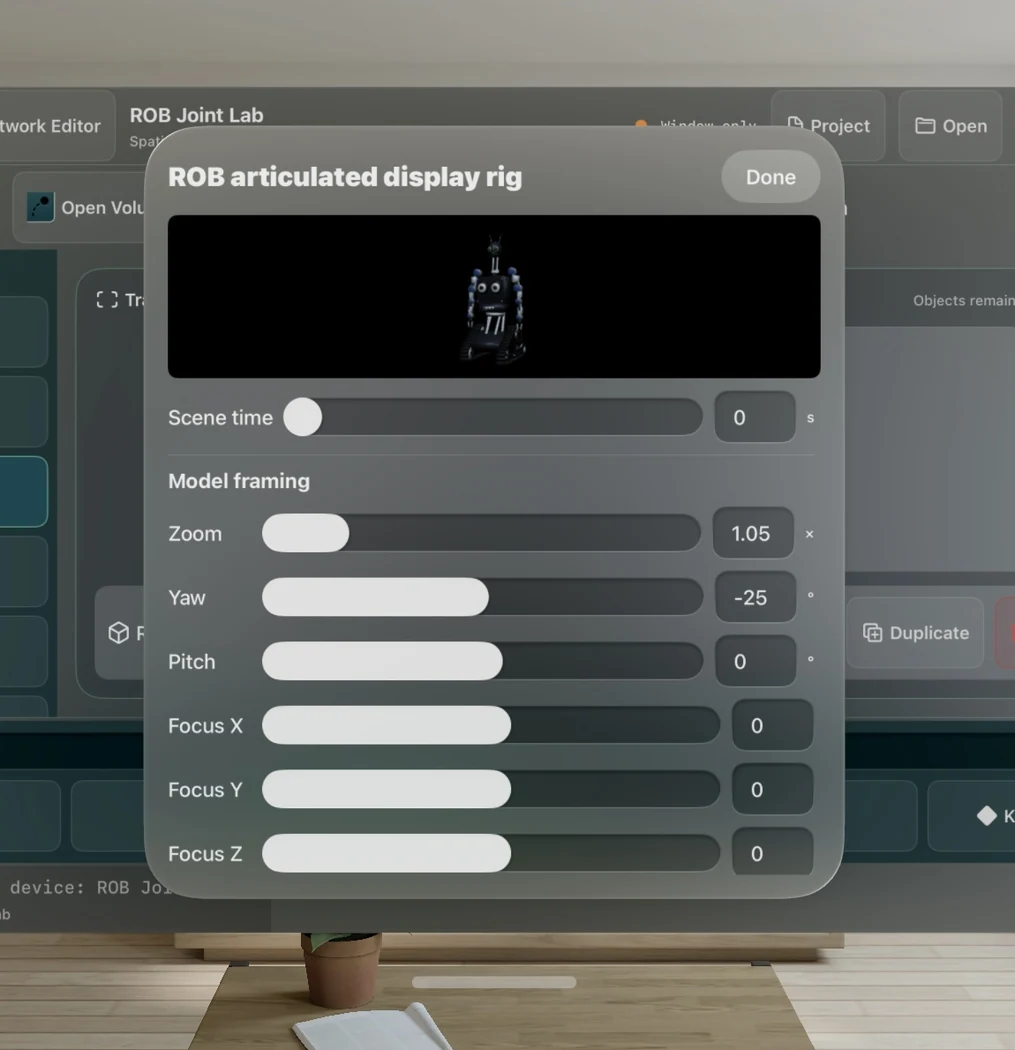
The joint rig shown here uses the same framing controls as the photographed scan. The preview responds to the draft settings before you record a key.
To bring the optics into frame gradually, record Zoom 1.42× with Focus Y 0.53 at 1.65 seconds, then 2.9× with Focus Y 0.72 at 2.45 seconds. Move Scene time to 3.4 seconds. For ROB’s camera head, enter Zoom 4.6×, Focus Y 0.78 and Focus Z 0.08. Set Yaw to −6° and choose Record View Key. Each focus coordinate runs from −1 to +1 across that axis. Positive Y points up the model. Positive Z moves the focus toward the viewer in the neutral view.
At 6.7 seconds, keep the same focus and zoom, set Yaw to 9°, and choose Record View Key. On the way back, record 2.6× with Focus Y 0.68 at 7.6 seconds and 1.42× with Focus Y 0.44 at 8.35 seconds. At nine seconds, return to roughly 1× zoom with all focus values zero and record again. Choose Done and press Play. The model turns within the close-up while your text keeps its place.
The 10-second template holds the focus on the head while the scan rotates. Open the movie.
Animate a joint
Create ROB Joint Lab, select ROB articulated display rig, and choose Animate 3D Model…. Under Robot joints, open Joint and select neck_pan.
Set Scene time to one second, enter −25° in Angle, and choose Record Joint Key. Move to three seconds, enter 30°, and record again. Use Go to beside a key to return to its time, or Remove beside that key to delete it. A joint’s Angle is in degrees. A sliding joint instead shows Travel in meters.
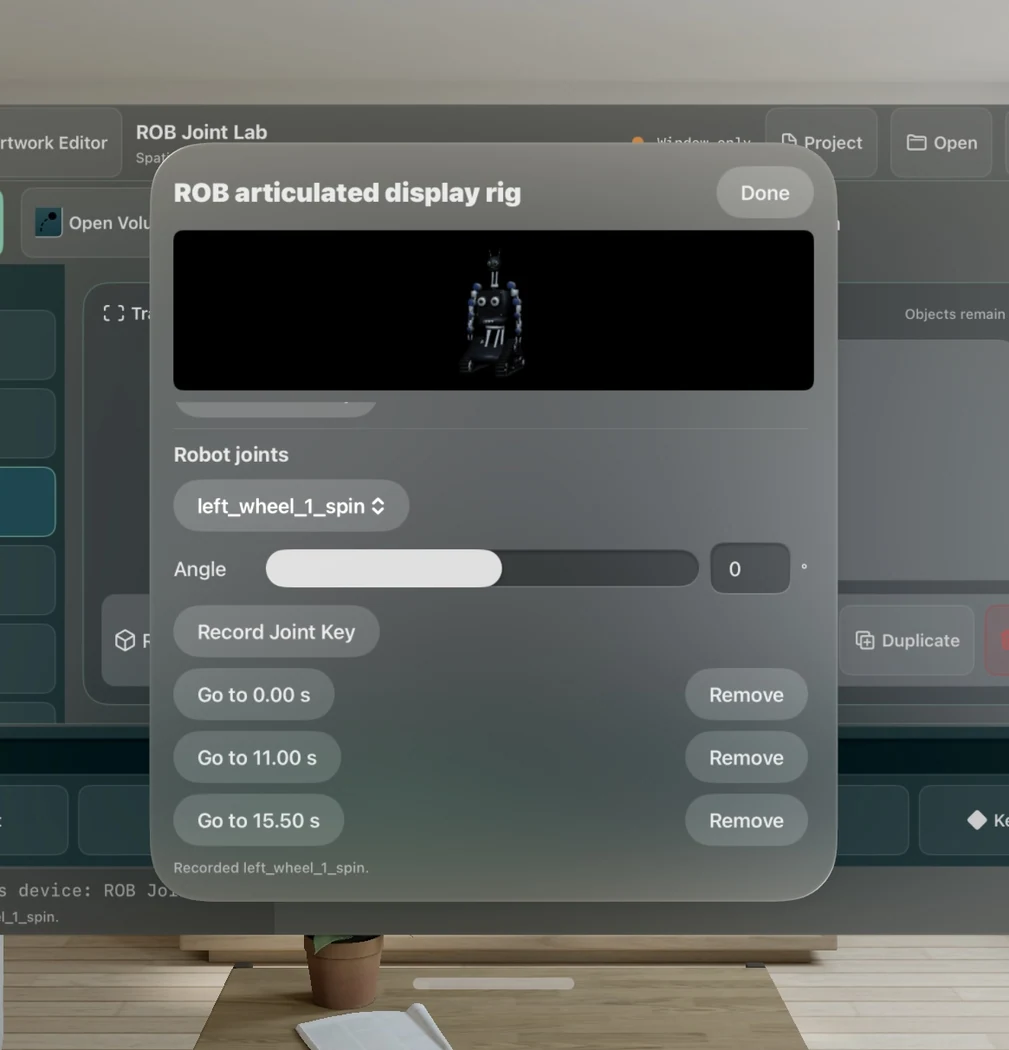
The simulator shows left_wheel_1_spin selected. Its joint track has individually editable keys at 0, 11 and 15.5 seconds.
To check the downloadable rig on Mac, import its folder into a fresh scene, set Scene time to two seconds, choose neck_pan, set Angle to 25° and choose Record Joint Key. The editor lists the starting pose at zero and the new pose at two seconds.
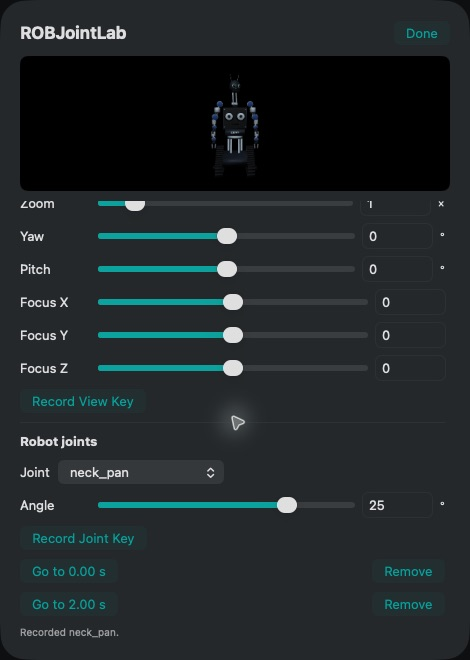
The Mac editor shows “Recorded neck_pan.” Use either Go to button to verify the pose.
Press Done and play the 16-second scene. The neck pans and the camera tilts first. The shoulder carriers move next. Then the flippers and six wheels animate to Eleven Axes. Each of the 11 joints has its own track, so editing the neck preserves the other ten performances.
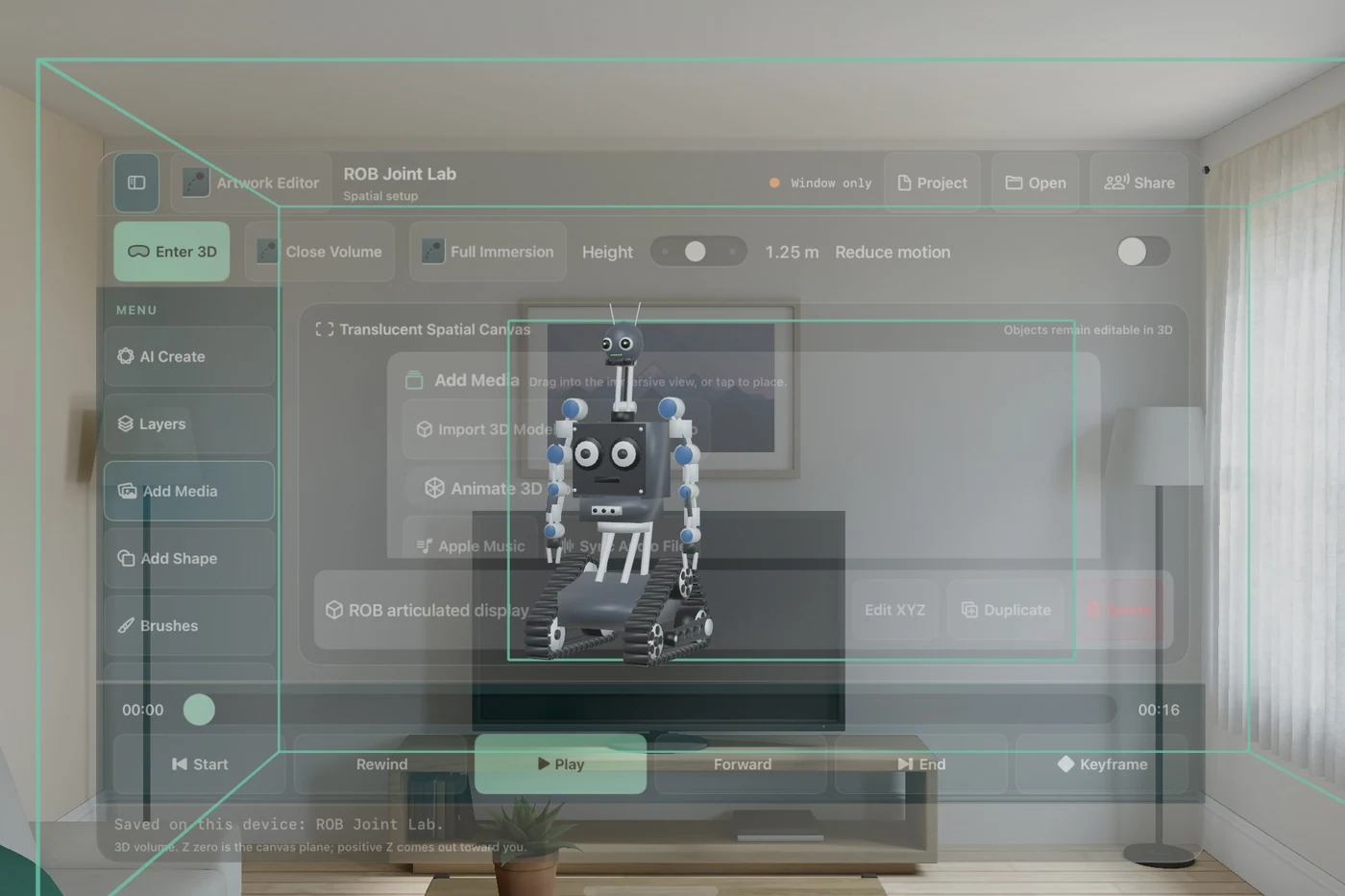
Choose Open Volume on Vision Pro. This simulator view shows the solid rig inside the mint volume boundary, in front of the editor window.
The 16-second performance plays back the 11 recorded joint tracks and the original score Eleven Axes. Open the movie.
Review and share the finished movie
On Vision Pro choose Add Media → Export Video. On Mac or iPad choose Export Video in the editor. For a volumetric project, Musimotion records the saved camera view and mixes the presentation soundtrack. A Pro export entitlement may be required.
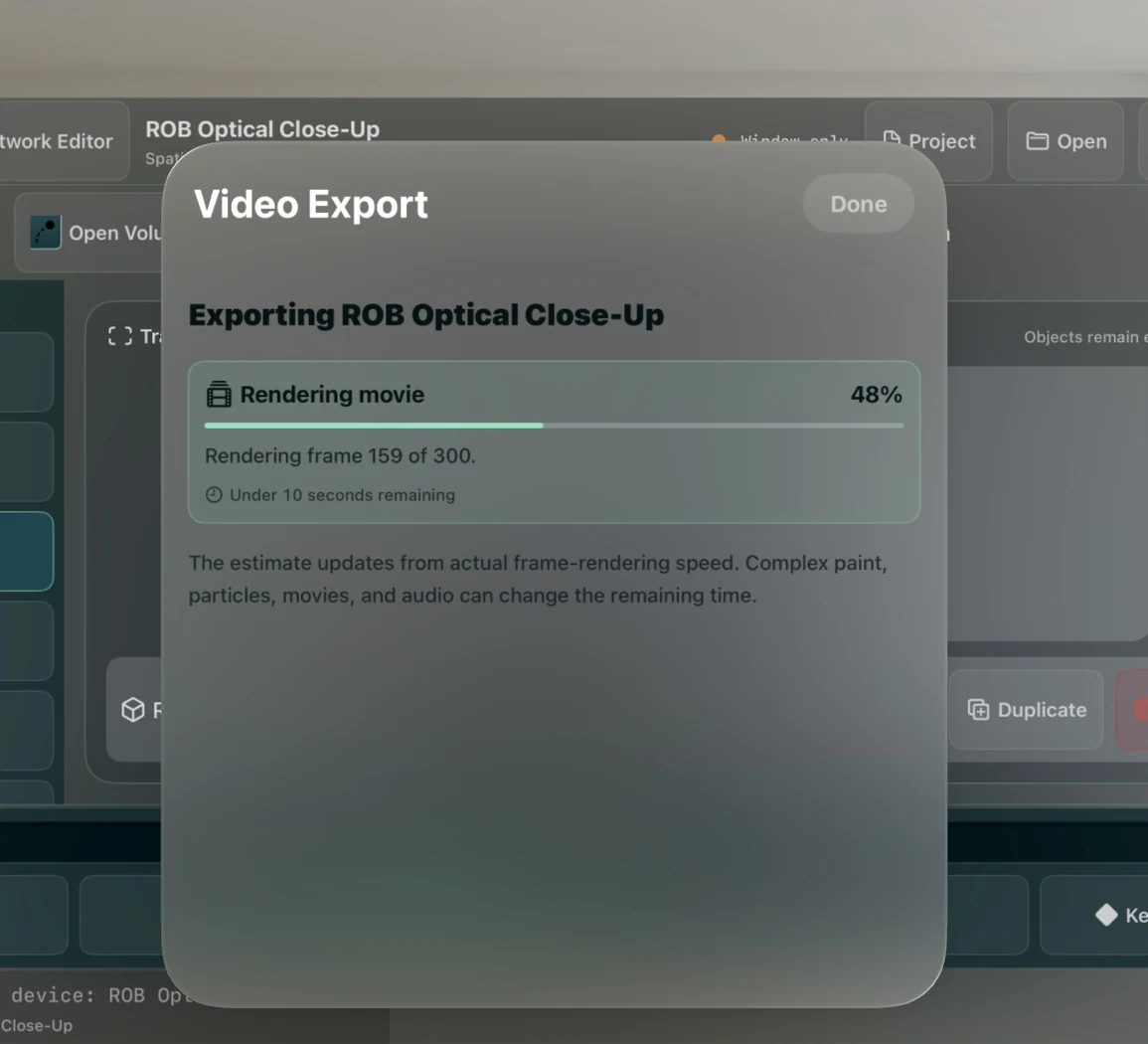
Musimotion reports rendering progress while it writes the optical close-up movie.
When rendering finishes, press Play in the export sheet. Seek to the close-up or the joint movement to check it in the exported MP4. Choose Share Video to send or save that file.
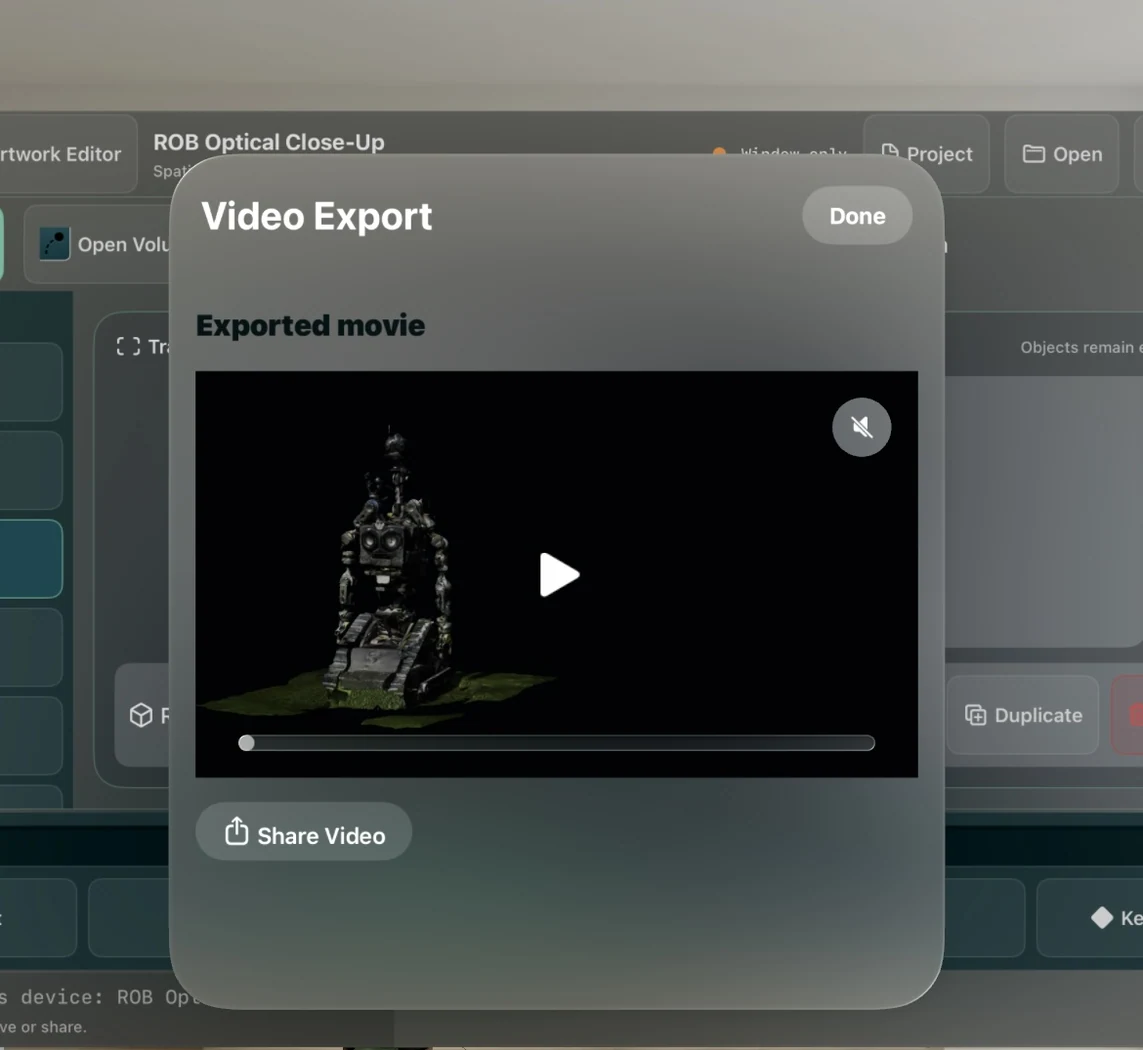
Press the triangle to play the exported file, or choose Share Video beneath the player.
Choose View Export to replay the last finished file. After an edit, choose Export Video again to create a new movie. To share an editable 3D presentation, use Export Project… and send the resulting package.
The first two templates already contain a textured USDZ made from Orbitus’s upright photographic scan. Joint Lab uses 41 colored meshes arranged into 12 links from the public ROB display model. Its example ranges are for presentation animation. View the original Orbitus model in your browser.
The downloadable package is 100,998 bytes. Its SHA-256 is cdb65cc4815829ab4291f198a4c3753783af234c09d092d788114cdb49d3951c.
Movie frame counts, audio details and SHA-256 checksums.
Screenshot provenance. The November 20, 2026 screenshots show the running visionOS 26.5 simulator and the native Mac editor. The Mac joint example uses the downloadable ROB package.
Verification on November 20 included 29 native Mac tests and 15 iPad simulator tests. The Mac run downloaded, verified and reopened the presentation containing all 19 complete films. The final import update passed eight additional iPad recovery checks and 15 visionOS simulator tests. On Mac, selecting a complete package in a new location loaded all 41 meshes into the robot. Four more native UI tests passed on final source in the visionOS simulator. They covered Beat Rail in a volume, entering and exiting Maker Faire Full Immersion, editing ROB and a joint, and exporting and reopening a finished movie. Physical headset comfort and hand tracking still require a headset run.