
Orbitus Robotics
Create scenes and soundtracks with AI
Musimotion · Editor and Vision Pro guide
November 20, 2026 · Installed Mac development preview. Shared editor workflows were also tested on iPad and Vision Pro simulators.
Use AI Create to plan on your device, or connect an external assistant through the Model Context Protocol (MCP). Scene drafts become individually editable objects on the timeline. Imported musical notes render into a playable audio layer. The examples below pair an eight-second lantern festival opening with a four-bar instrumental at 120 BPM.
Refine a brief on device
- In an open presentation choose AI Create. Enter a brief in AI Creation Studio and choose 1. Build Steering Plan. Try “Make something” to see the follow-up.
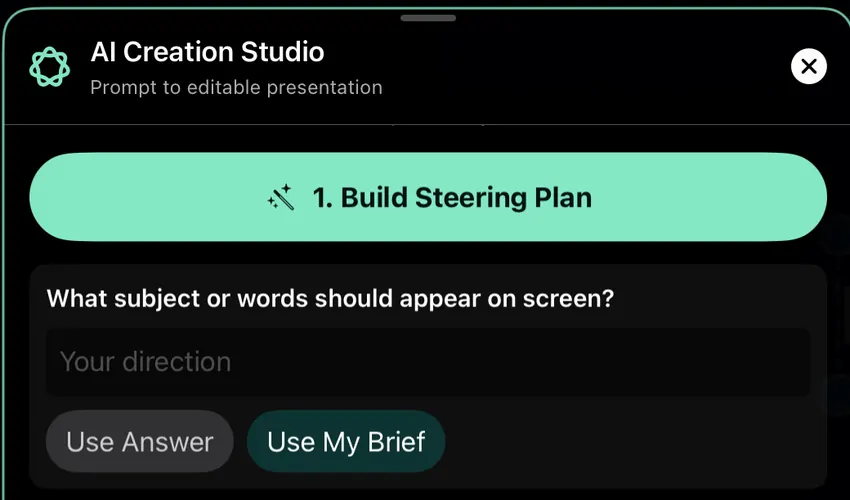
The iPad simulator asks one question after “Make something.” Enter a direction to enable Use Answer, or continue with Use My Brief.
- Enter “Lantern Festival with a glowing star” in Your direction, then choose Use Answer. For an intentionally open brief, choose Use My Brief. With a specific request you can go straight to the plan.
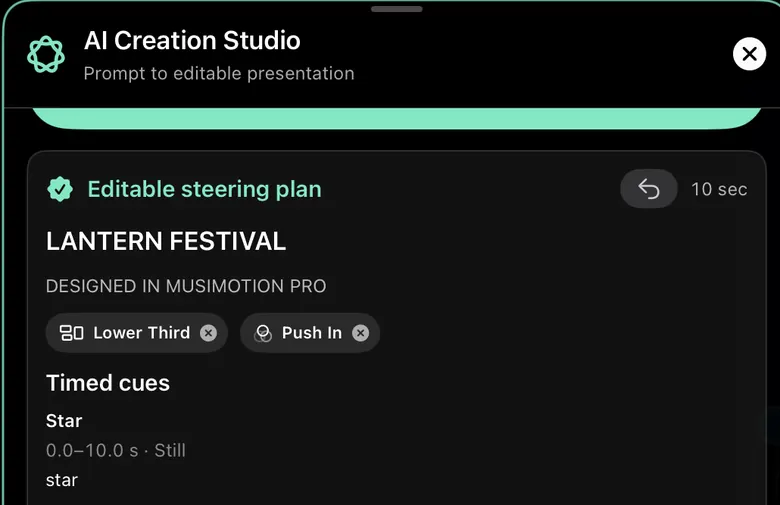
The iPad simulator’s local template planner used the answer to build Lantern Festival with a star layer. This capture shows the template fallback.
- Review the title, duration and timed cues. To use text and animated shapes, choose No Artwork and Create Without Artwork. Apple Foundation Models runs on device when available. Tests on a supported Mac generated two scene plans and a four-bar score with the Apple model. Musimotion can use its local template planner when the model is unavailable.
Connect an external assistant
Download the Musimotion MCP companion · v1.1.0 ZIP. The ZIP contains the local server, dependency lockfile, three example drafts and connection tests. Install it on the computer running a desktop assistant that supports local stdio MCP servers.
Install Node.js 22 or later. Unzip the companion into a permanent folder. In a terminal open that folder and run:
npm ci --omit=devRun the following command to print the computer’s full paths to Node and the server:
node -e "console.log(process.execPath); console.log(require('node:path').resolve('server.mjs'))"Add a local stdio server named musimotion in the desktop assistant. Use the first path as its executable command and the second as its single argument. For Codex CLI, substitute the printed paths in this command and start a new session:
codex mcp add musimotion -- "/absolute/path/to/node" "/absolute/path/to/musimotion-mcp-1.1.0/server.mjs"Reconnect the host and check for prepare_scene_brief, create_scene_plan and create_music_score. The first tool can return a question for the assistant to ask in chat. In a Codex test, “make me a cool intro” prompted a question about what to introduce and which title to show. The other two return complete JSON and save new files in Downloads → Musimotion AI on the host computer. To choose a different folder, add
--output-dirand its absolute path as two more server arguments.
Import an editable scene
- Ask your assistant to use Musimotion for an eight-second Lantern Festival opening with the headline Lanterns at Dusk, a dark background and a gold star that rises from 2 to 6 seconds. The assistant authors a
.musiplan.jsonfile. To follow along without setting up a host, use the Lantern Festival example. - In a Musimotion document choose AI Create → Import AI Draft… → Choose JSON File…. On Mac the File menu also offers Import AI Draft…. On iPad or Vision Pro, first transfer the file to a location visible in Files. You can also paste the JSON into Draft JSON and choose Review Draft.

In the Mac editor, Import AI Draft… is in the header of AI Creation Studio. The import sheet also links to the companion setup guide.
- Check External AI draft, the scene title and the animation for Lantern star from 2.0 to 6.0 seconds. A 5–120 second draft can place up to eight additional text or shape layers at normalized x/y positions. The format also supports the falling balls and rising balloons spatial effects.
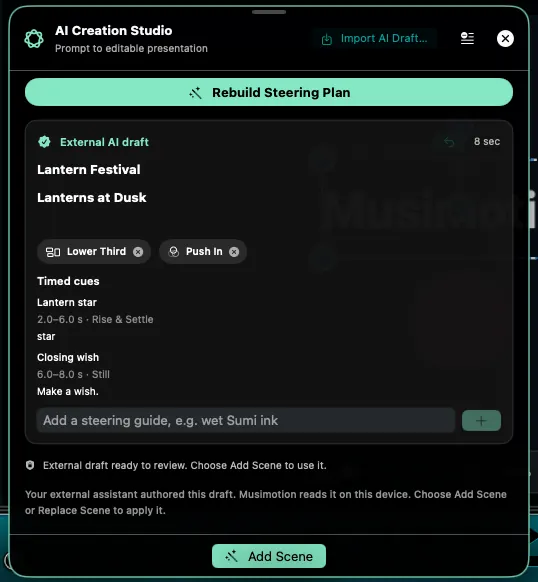
In this synthetic Codex-authored variation, Lantern star rises from 2 to 6 seconds, then Closing wish shows “Make a wish.” The editor identifies the external assistant as the author. The downloadable starter demonstrates the star cue.
- Choose Add Scene, open Objects, then select Lantern star to edit the layer. Undo immediately after insertion restores the earlier scene list.
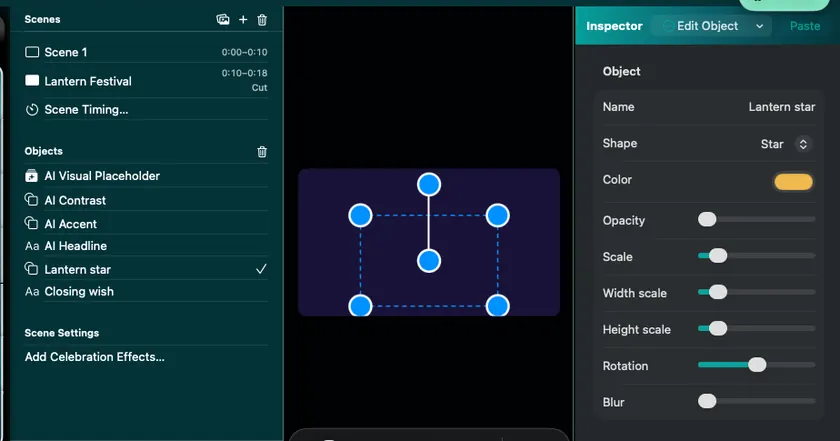
The new Lantern Festival scene begins after Scene 1. Lantern star has its own editable shape, color and transform controls in the Mac inspector.
If the draft is rejected, correct the field named in the message and try Review Draft again. Paste only the object with version, presentationTitle, headline and duration at the top, or reopen the corrected file. The editor keeps your project available while you correct the draft.
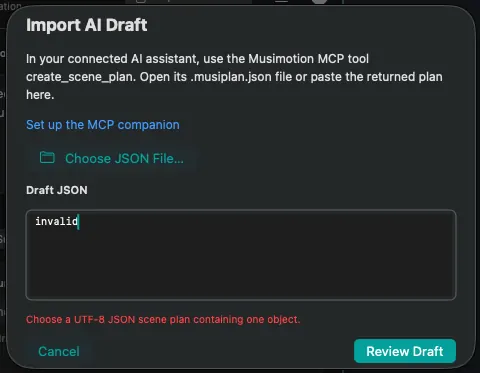
This synthetic Mac example contains only the word “invalid.” The message asks for a UTF-8 JSON scene plan containing one object. Replace the input or choose a file.
Import an instrumental score
The v1.1.0 ZIP above supports Techno, House, Breakbeat, Ambient, Retro 8-bit and Shamisen. With the updated development editor and its matching MCP server from source, you can also ask for Chill House, Rock or Classical Piano. The score JSON uses chill-house, rock or classical-piano in its style field. Listen to the styles in the Music Studio guide.
- Ask your assistant to use create_music_score to write “four bars of melodic techno at 120 BPM in D, with a deep bass hook and a lead that answers in the last two bars.” The returned
.musiscore.jsoncontains musical choices including bass and lead scale degrees, rests, tempo and ensemble. The Lantern Pulse example lasts eight seconds. - Open Music Studio, choose Import AI Score…, then open the JSON file.
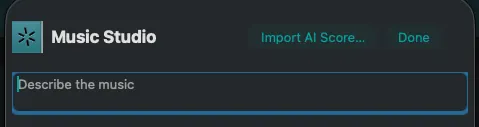
In this Mac development build, Import AI Score… sits at the top of Music Studio. It opens the system file picker.
- Choose Preview to hear the locally rendered instrumental. Check the title, source, BPM and duration.
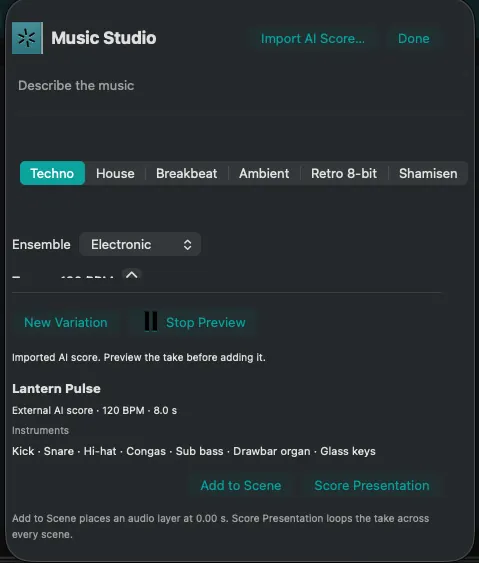
The Mac preview is playing a synthetic Codex-authored score. The source reads External AI score. Lantern Pulse runs for 8.0 seconds at 120 BPM.
- Choose Add to Scene to place the take at the playhead, or Replace Track when working with an existing audio lane. In the rhythm editor, Use as Rhythm Song applies it to the beat chart. To revise the notes, ask the assistant to change the bass or lead motif, import its new score and audition it.
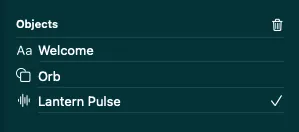
After Add to Scene, the Mac Objects list shows Lantern Pulse as a selected audio layer.
For a new score composed inside Music Studio, an open brief can show What should the music do in this scene? Choose Under narration, Build to a reveal, Steady groove or Use my settings, then choose Generate Music. The on-device planner receives the scene name and up to three nearby title cues with their times relative to the music entry point.
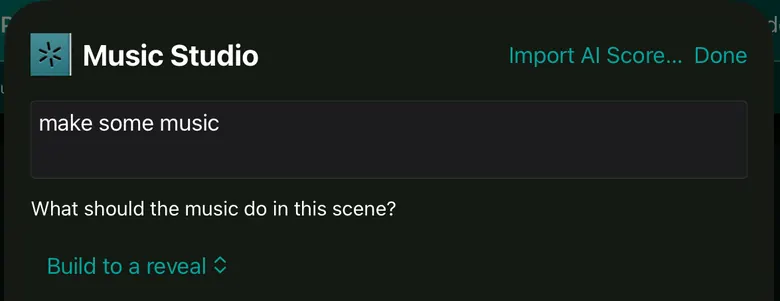
For “make some music,” the iPad simulator shows the optional role picker. Build to a reveal gives the planner a musical direction.
A completed recording from another service follows the audio import workflow. For example, download an audio-only MP3 from Gemini, then in Musimotion choose Add Media and the folder-plus control labeled Import a photo, movie, or audio file. Google’s music download instructions.
Where the content goes
The external model runs in the assistant you choose. Its conversation and data settings apply to the brief and follow-ups. The companion exchanges the generated draft and its local export path with that assistant. It reads no existing project files or photo library and requires no API key. The import screen lets you review the external scene before adding it to your project. Music Studio renders imported notes on the device. Cloud sharing and publication remain separate editor actions.
ZIP size 14,839 bytes, SHA-256 cb7954094c40244a923ef4b3c70f9c4040731fcda9958e36843ae5d8f862f1c6. Preview verification · Screenshot sources.
Perform a spatial music video
Ask your assistant for “Beat Rail Express at 128 BPM,” or open the Evening Express scene draft. In AI Creation Studio, import the draft, review its directions and add it to the presentation. Press Play. On Vision Pro, choose Full Immersion to see the train cross the signal on each beat. Spatial presentation guide
When Apple’s model is unavailable
Musimotion checks the system model before creating a plan or score. When it is unavailable, the on-device template planner and composer still create editable scenes and music. Image Playground has a separate availability check. Apple currently restricts Apple Intelligence on devices purchased in China mainland, and on devices purchased elsewhere when both the user’s location and Apple Account region are China mainland. App Store distribution has additional filing and assessment requirements. Musimotion’s mainland filing status remains unverified. Apple Intelligence availability · App Store Connect compliance information.