
Orbitus Robotics
Hear and replace a Musimotion score
Musimotion · Generate a soundtrack
November 20, 2026 · Development preview for Mac, iPad and Vision Pro
Listen to the same musical brief played by two versions of Musimotion. Each pair uses the same prompt, local composer, seed, tempo and number of bars. Playback levels are matched. All four examples are synthesized instrumental performances.
Shamisen at 64 BPM
The Ink Gate opens with four bars of shamisen. Listen to the attack on a low note and the space it leaves for the answering phrase. In the revised take, a stronger downward pick can strike the instrument’s skin, a return stroke sounds lighter, and a left-hand pluck releases the string. In the second bar, listen for a sliding downstroke followed by a lower, softer pluck. The final note settles on the open low D. All four bars follow a different sequence of pitches in the revised example. On the acoustic instrument, the plectrum is called a bachi. Players can also pluck with the left hand (hajiki) or slide a finger along a ringing string (suri). Japan Arts Council guide to the shamisen · Pro Musica Nipponia’s playing techniques
Earlier shamisen · 15 seconds
Download Earlier shamisen (AAC)
Revised shamisen · 15 seconds
Download Revised shamisen (AAC)
Techno at 128 BPM
Both takes use the Electronic ensemble and run for eight bars. Follow the bass between the kicks, then listen for the lead’s answer in the second four bars. The revised performance gives the bass its own low register and leaves space ahead of each kick. The earlier example has five distinct bass pitch sequences across eight bars. In the revised example each bar has its own bass sequence.
Earlier techno · 15 seconds
Revised techno · 15 seconds
Audition a new opening
A saved presentation carries its own recording. Opening it plays the score you saved. New Shamisen and Techno takes use the revised performances automatically, including shamisen scores in newly created black dragon templates. You can listen to a new take before changing the recording in a saved project.
- Open a scored presentation such as The Ink Gate. Choose Objects, select The Ink Gate · Shamisen, then open Music Studio. In the Vision Pro spatial workspace, open Add Media → Music Studio. Check the track name beside Replace Track. With a single generated soundtrack in the scene, Music Studio finds it automatically. For an existing generated score, the style, tempo and bar count come from its saved credits.
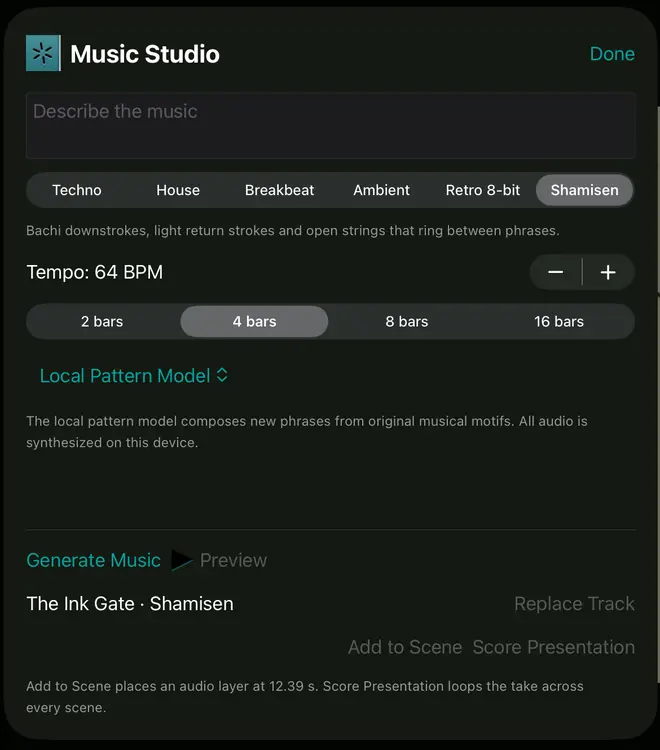
The iPad simulator shows the existing track name below Generate Music. Shamisen, 64 BPM and 4 bars came from the saved score.
- Choose Generate Music, then Preview to hear the new take. Choose New Variation to try another. You can leave Music Studio without applying a take and keep the original opening.
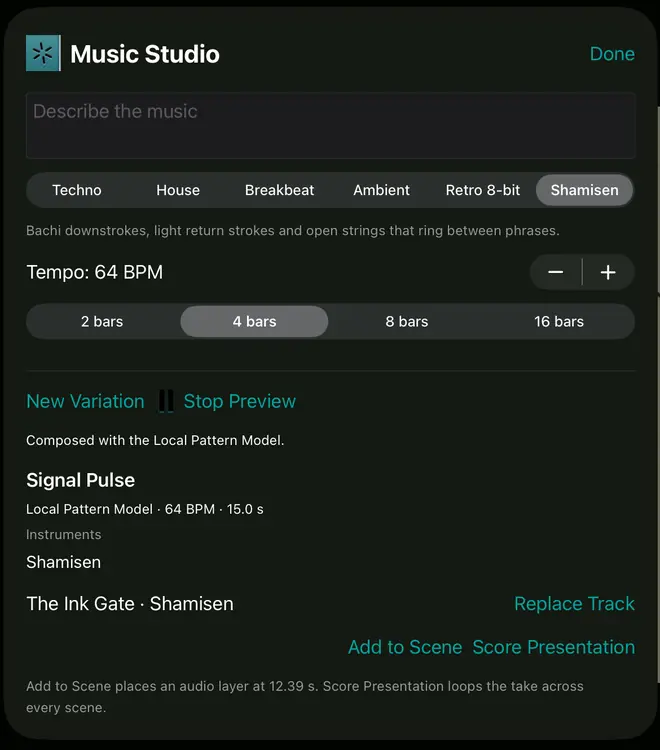
Signal Pulse is playing in this iPad simulator capture. Stop Preview ends the audition. Replace Track applies it to The Ink Gate · Shamisen.
- To keep the take, choose Replace Track. Play the opening with its animation. Save the project to keep this performance.
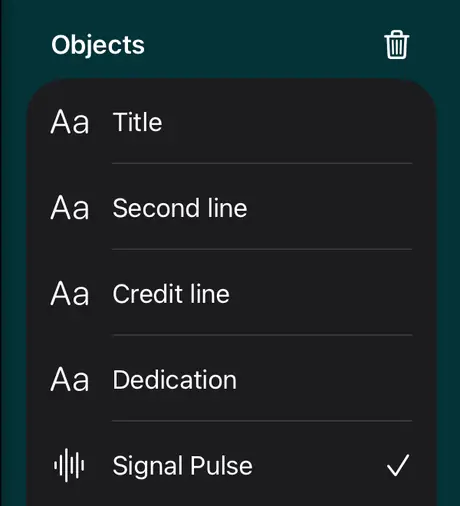
The selected audio row now reads Signal Pulse. Return to the start to hear the replacement in time with the opening.
- To restore the saved performance immediately after replacing it, choose Undo. Look for The Ink Gate · Shamisen again in the Objects list.
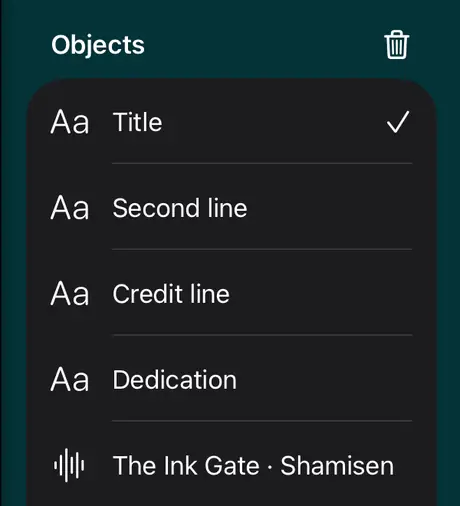
Undo restores the original recording on the same layer.
If Replace Track is dimmed, finish Generate Music first. If the target row is missing or names a different clip, choose Done, select the audio layer under Objects and reopen Music Studio. For an imported track with a late trim start, the new take needs to run beyond that point. If the editor asks for a longer take, choose more bars or move the trim start earlier. Add to Scene creates another audio layer at the playhead.
To carry the selected music beyond its first pass, turn on Continue soundtrack in Scene Timing…. Extend the opening and continue its music.
Bring in a track from Gemini
Music Studio renders music on your device. To bring in a track you created separately in Gemini, choose Download on the Gemini track and select the audio-only MP3. In Musimotion’s artwork editor choose Add Media, select the folder-plus button labeled Import a photo, movie, or audio file, and choose the MP3. Google’s music download instructions.
Recording settings, loudness and checksums · Development notes · Screenshot details