
Orbitus Robotics
Share a Musimotion creation on the web
Musimotion · Browse public creations
November 20, 2026 · Mac development preview 1.0.0 (7). The website plays a rendered movie on desktop and mobile. The illustrated example uses Lantern Relay QA, a three-second Musimotion presentation with an animated star and two notes. Musimotion published this test presentation to the production community. The gallery and player screenshots show the website release candidate rendering that public record and its movie.
Publish from Musimotion Studio
- Open the presentation you intend to make public. In the Mac editor, choose Share in the toolbar. The window opens Share Experience.
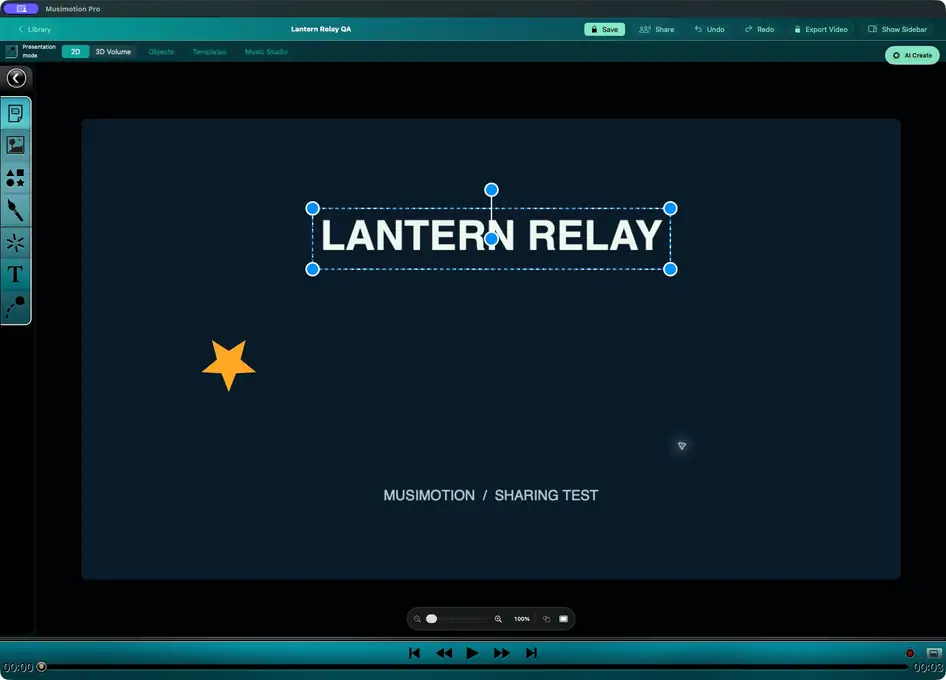
The Mac development preview shows the test presentation before sharing.
- Choose Community. Under Publish this creation, enter your Creator name and a description. Choose Publish when you are ready for other Musimotion users to download and remix the project and for visitors to watch its movie on the public website.
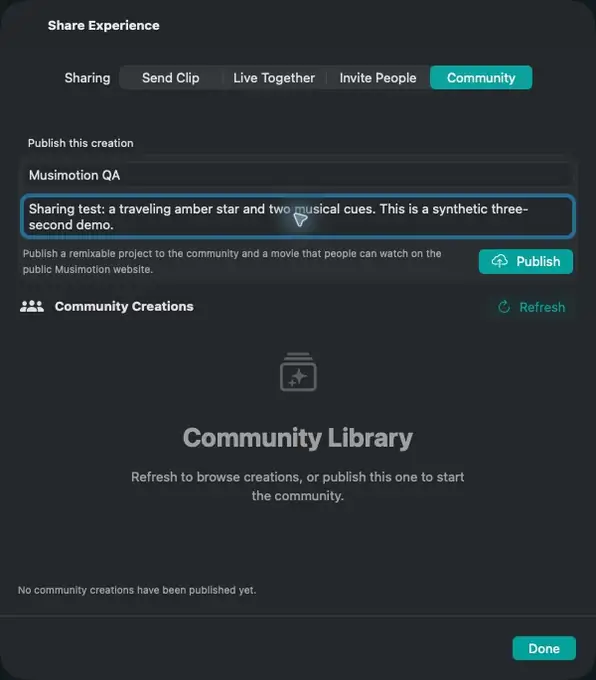
Check the title in the editor and the details in this form before you publish.
- After a successful publish, Musimotion shows the creation under Community Creations. The test post is available on the Lantern Relay QA public page.
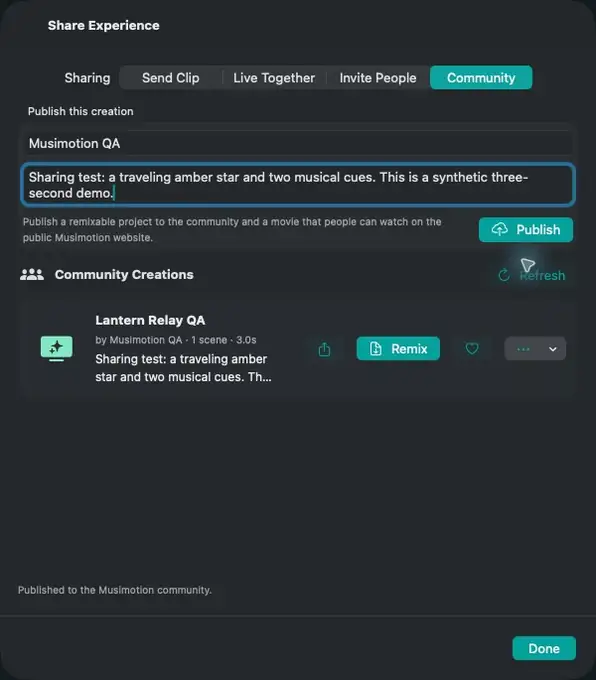
The Mac preview confirmed publication to production. Anonymous Chrome at desktop and phone widths and a fresh macOS WebKit player both played, paused and sought within the production movie. A Musimotion client downloaded the post as an editable remix.
- Publishing requires Musimotion Studio. If you see the subscription screen, you can dismiss it. The preview offers Restore Purchases for an existing purchase. Opening the subscription screen alone does not publish the presentation.
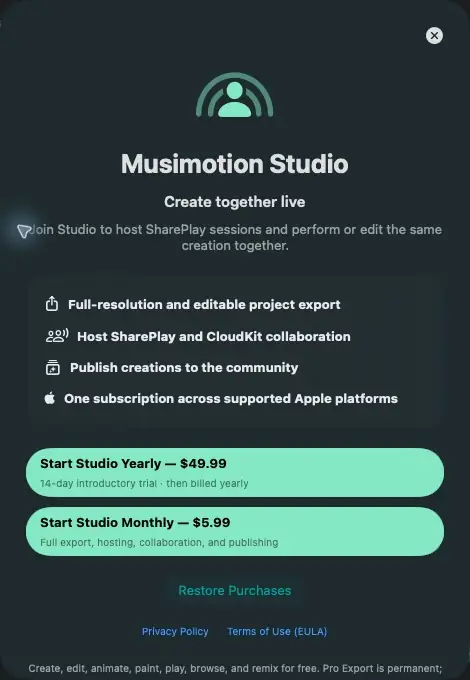
The development preview requested a Studio entitlement. This capture records the subscription screen without making a purchase.
Open and share a public page
- Open the Community section on the Musimotion product page. Find the title and author. Choose Open public page under the creation you want to share.
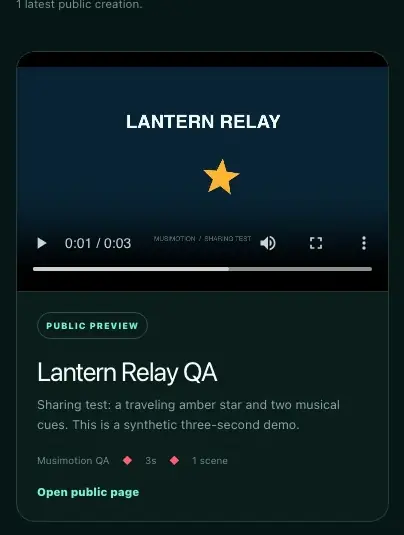
The gallery displays the creator name, duration and scene count for this public test creation.
- Select Play in the movie controls. Use the scrubber to revisit a moment or switch to full screen. Copy the page address from the browser or use your browser’s Share command. This address opens the same creation even after newer work appears in the gallery.
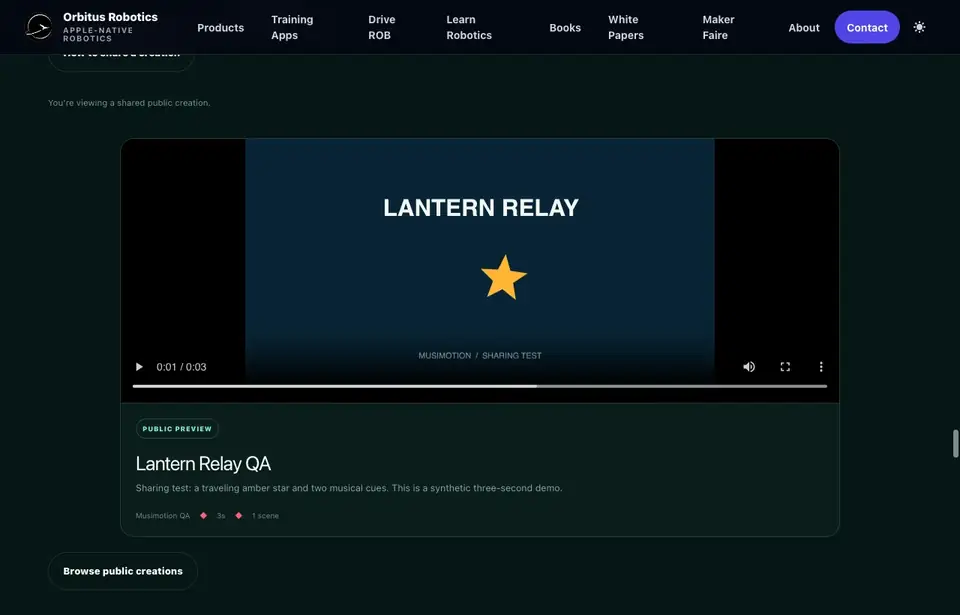
The player shows the published native movie paused at 1.75 seconds. Your recipient can play the movie without signing in to the website or installing Musimotion.
When a preview is unavailable
- A post labeled Movie preview unavailable has no playable movie attached. If a previously shared link says its creation was removed or hidden, choose Browse public creations to return to the gallery. If a movie fails to load partway through, reload its public page to request a fresh media URL. When the service is temporarily unavailable, retry later.
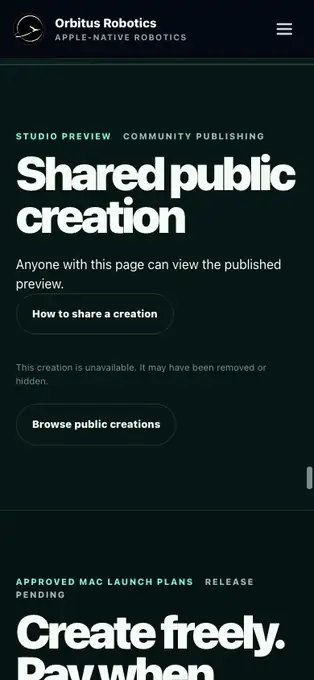
The website shows the same notice for a missing or hidden listing. Hiding a listing only affects the gallery display. Community publication creates a public CloudKit record.
Share with specific people
- In Share Experience, choose Invite People to prepare a private CloudKit invitation. On November 20, 2026, the production service created an iCloud invitation for a synthetic project. The owner saved an edit and fetched the updated project with its original archive intact. The private record stayed out of the anonymous public database. Acceptance and editing with a second iCloud account remain unverified.
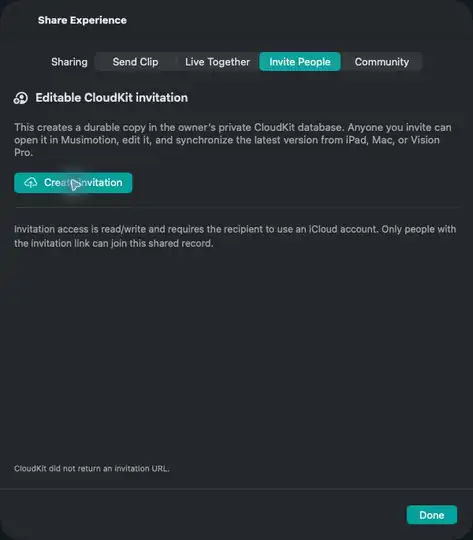
Historical troubleshooting capture from before the November 20 production repair. If no invitation URL appears, check the device’s iCloud sign-in and try Create Invitation again. Send a successful invitation directly to the intended editor.
- For synchronized live playback and edits, choose Live Together and Start SharePlay. Musimotion displays Joining SharePlay… while Apple connects the session. Once the host has joined, Waiting for another participant means no other Musimotion participant has joined yet. The host sends the initial creation when another participant arrives. If the presentation exceeds the attachment limit shown in the app, use Invite People once private invitations are available in your environment.
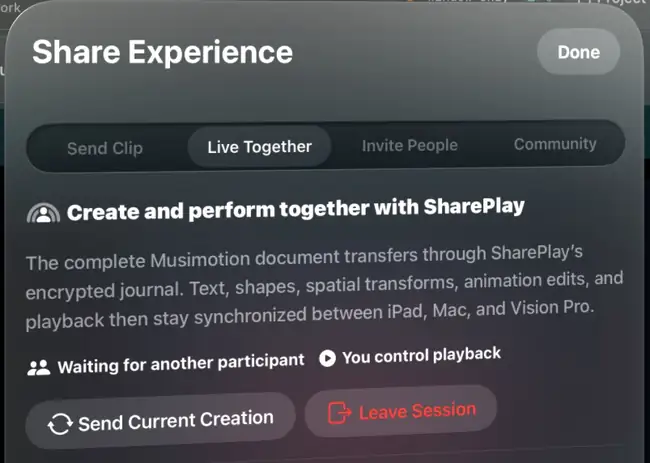
The visionOS 26.5 simulator shows the host after joining Apple’s SharePlay framework during a simulated FaceTime call. Its simulated persona did not run a second Musimotion app. Two independent local Musimotion processes separately verified that edits traveled in both directions. A live two-device FaceTime session remains unverified.
- For a rendered movie to send directly, choose Send Clip, then Create Playback. If the App Clip is unavailable in your storefront, choose Send Movie and select the destination in the system share sheet.
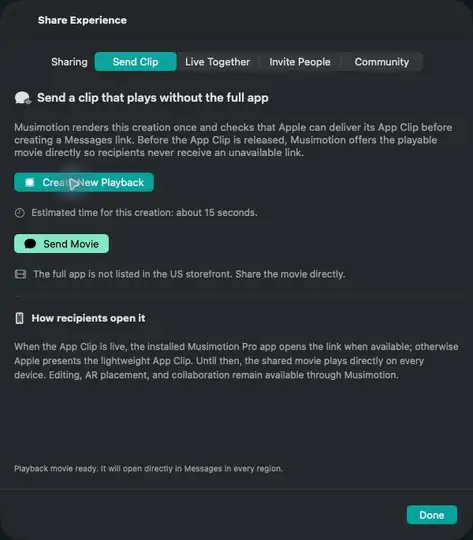
The Mac preview rendered the movie and offered the file. The storefront check did not provide a usable App Clip link.